
What Docker is
Docker is containerisation software used to package and run applications in isolated user-space environments called containers. A container includes the application and the libraries, dependencies, configuration, and runtime pieces it needs, without requiring a full guest operating system for every service.
In my lab, I used Docker to run small Linux environments and services on an Ubuntu Server VM. The host provided the kernel and Docker runtime; the containers provided the isolated application environments. This let me start, test, stop, remove, and rebuild services without rebuilding the whole virtual machine.
The original lab VM was built in VMware Workstation Pro 16 with Ubuntu Server 18.04, 4 CPU cores, 8 GB of RAM, 60 GB of storage, and a NAT network adapter. I enabled SSH so I could manage the machine from another VM on the same subnet.
The first setup step was updating the Ubuntu packages:
sudo apt update && sudo apt upgrade -yI then installed Docker from the Ubuntu package repository:
sudo apt install docker.ioThe older lab also experimented with the Snap package. I would not present that as the preferred install path now; for a current build, I would check Docker’s own installation guidance for the target distribution and keep the install method consistent.
Containers, images, and registries
An image is the template Docker uses to create containers. It contains the filesystem layers and instructions needed for the container environment. A container is the running instance created from an image.
Images are usually built from Dockerfiles. A Dockerfile defines the base image, dependencies, libraries, configuration, and the command or application that should run when the container starts.
Docker Hub is a public registry for container images. Pulling an image downloads it from the registry so it can be used locally:
sudo docker pull centosIn this lab, I pulled CentOS first and used it to create a basic container:
sudo docker run -d -t --name mycentoscontainer centosThe flags are straightforward:
docker runcreates and starts a new container.-druns it in detached mode, so it starts in the background.-tallocates a pseudo-terminal.--name mycentoscontainergives the container a readable name.centostells Docker which image to use.
To list running containers, I used:
docker psTo open a shell inside the running CentOS container:
sudo docker exec -it mycentoscontainer bashHere, docker exec runs a command inside an existing container. The -i flag keeps STDIN open, and -t allocates a pseudo-terminal, so the shell behaves like an interactive session. Typing exit returns to the host shell.
Containers versus virtual machines
Virtual machines and containers solve different problems. A virtual machine virtualises hardware. It runs a full guest operating system with its own kernel on top of a hypervisor.
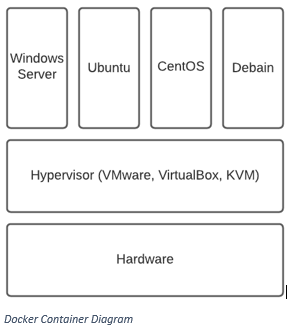
A container uses operating-system-level virtualisation. Docker runs on the host operating system and starts containers that share the host kernel while isolating the application environment.
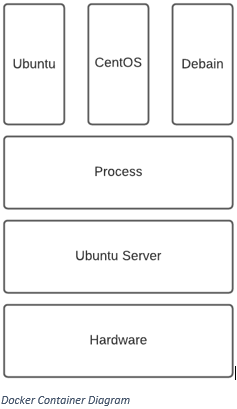
That shared-kernel design is why containers are lightweight compared with full virtual machines. They do not need to boot a separate kernel for each service, and they do not need a full OS installation per workload. They are usually faster to start, lighter on disk, and easier to recreate.
The trade-off is isolation. A VM gives a stronger boundary because it has a separate guest OS and kernel. A container is more convenient for packaging and running services, but it is not the same isolation boundary as a VM.
The compatibility point is tied to the kernel. Linux containers depend on a Linux kernel. Windows containers depend on Windows container support. When Linux containers run on Windows or macOS, Docker uses a Linux environment behind the scenes so the containers still have the kernel behaviour they need.
Running services in containers
After CentOS, I pulled Alpine Linux:
sudo docker pull alpineAlpine is a small Linux distribution based on musl and BusyBox. It is commonly used for compact container images because it keeps the base environment small.
I started an Alpine container in the same style as the CentOS one:
sudo docker run -d -t --name myalpinecontainer alpineRunning docker ps then showed both containers on the same host:

That is the basic Docker workflow: pull an image, run a container from it, check the running containers, and execute commands inside the container when needed.
The lab then moved from operating-system-style containers to an application container with WordPress. I pulled the image:
sudo docker pull wordpressThen I ran it as a service:
sudo docker run -t -d -p 80:80 --name mywebsite wordpressThe new option there is -p 80:80. This publishes a container port to the host. The syntax is:
HOST_PORT:CONTAINER_PORTIn this example, traffic to port 80 on the host is forwarded to port 80 inside the WordPress container. Without publishing the port, the service may be running inside the container but not reachable from outside in the way I expected.
To stop a running container:
sudo docker stop <name>To remove a stopped container:
sudo docker rm <name>Removing a container removes that container instance. It does not remove the original image, and it does not preserve files written only inside the container unless that data is stored somewhere persistent.
Ports, volumes, and persistence
Port publishing controls how a container service becomes reachable from the host or network. A container can run an application internally, but the host needs an explicit mapping if the service should be accessed through a host port.
That is why the WordPress example used:
-p 80:80The left side is the host port. The right side is the container port. Changing the host side would allow the same container port to be exposed on a different host port, which is useful when testing multiple services on one machine.
Persistence is the other half of service deployment. Containers are designed to be replaceable. If a container writes data only into its own writable layer, that data is tied to the lifecycle of that container. Remove the container and that internal state is gone.
For services that need durable data, such as websites, databases, logs, uploads, or configuration, the data should be stored through a Docker volume or a carefully chosen bind mount. That separates the service runtime from the data that should survive rebuilds.
For later lab work, I separated disposable container state from data that needed to persist.
Docker in lab environments
Docker works well for lab environments because it makes service deployment quick and repeatable. A container can be started from a known image, configured, tested, stopped, removed, and recreated without rebuilding an entire VM.
For security and infrastructure labs, that supports workflows such as:
- run a web service and expose only the required port;
- test how a configuration change affects the service;
- keep throwaway services separate from the host;
- run multiple small services on one lab machine;
- rebuild a service quickly after breaking it;
- document the image, port mapping, and persistent storage decisions.
Docker also supports virtual networks, which lets containers communicate with each other without placing every service directly onto the host network. That becomes useful once a lab moves beyond a single container and starts modelling small application stacks.
Troubleshooting note: AppArmor and stuck containers
One issue I hit in the lab was a container that would not stop cleanly. The error looked like this:
Error response from daemon: Cannot kill container: 981a44d4c79: Cannot kill container xxxx: unknown error after kill: runc did not terminate successfully: container_linux.go:392: signalling init process cause "permission denied"At the time, I traced this to AppArmor on Linux. AppArmor is a Linux kernel security module that restricts program behaviour through per-program profiles. The workaround I used was:
sudo aa-remove-unknownAfter that, I retried the container stop. I would treat this as a historical troubleshooting note rather than a blanket recommendation. AppArmor is a security control, so removing unknown profiles should not be done casually on a real system.
Security considerations
Containers are useful, but they are not automatically secure. The main security considerations I keep in mind are:
- Containers share the host kernel, so they are not the same isolation boundary as virtual machines.
- Avoid running containers as root where possible.
- Be careful with mounted host paths; a risky bind mount can expose sensitive host files to a container.
- Do not expose unnecessary ports.
- Store and inject secrets properly rather than baking them into images or command history.
- Keep images updated and rebuild containers when base images change.
- Prefer trusted images and understand what is inside them.
- Treat container escape and container misconfiguration as real risks.
- Keep logging and monitoring in mind, especially for services exposed outside a lab host.
Docker is strong for repeatable lab services, but the host still needs normal system hardening. If the Docker host is weak, overexposed, or running containers with excessive privileges and broad mounts, the container layer will not fix the underlying risk.
Currentness note
This page comes from a 2021 Docker lab. The core Docker model is still the same: images create containers, containers share the host kernel, port mappings expose services, and persistent data should live outside the disposable container layer.
Some details change over time. Docker installation methods, image names, default tags, CentOS image availability, and recommended hardening settings should be checked against current documentation before using this as a build guide.