

Building a small Active Directory lab
I built this lab in 2021 to understand how a small Windows domain fits together: a domain controller, DNS, users, groups, workstation domain join, and the administrative control that comes with centralised identity.
I kept the environment deliberately simple. I used one Windows Server machine as the domain controller and DNS server, one Windows 10 Enterprise workstation as a domain member, and a pfSense firewall between the host-only lab network and VMware NAT. The setup showed the relationship between identity, DNS, authentication, policy, and domain-controller control in a small network.
I also used the completed lab to examine common security risks around Active Directory. The setup sections keep the practical build detail, and the later risk section focuses on exposure, misconfiguration, and hardening rather than command sequences.
How Active Directory fitted together
Active Directory is Microsoft’s directory service for Windows network environments. In the lab, the domain controller became the central place for managing users, groups, passwords, computer objects, permissions, and domain services.
I focused on three protocols that make the environment work:
- DNS, used by clients to find domain services and resolve hostnames.
- LDAP, used to query and manage directory information such as users, groups, permissions, and identity attributes.
- Kerberos, used for ticket-based authentication inside the domain.
DNS was the first dependency I had to configure correctly. Without local DNS pointing at the domain controller, the workstation could not find the domain. LDAP gave the directory its structure. Kerberos provided the authentication flow, using tickets and shared trust with the domain controller instead of treating each machine as a separate island.
For the basic Kerberos flow, I understood it like this: the client requests a ticket from the Key Distribution Centre, the domain controller validates the request, and the client receives a ticket-granting ticket that can then be used to request access to services. That ticket-based model ties time, identity, DNS, and the domain controller together in a Windows domain.
Lab environment
The lab was built in VMware with a host-only internal network and pfSense providing the route out through VMware NAT.
Windows Server 2019 Evaluation
The Windows Server 2019 VM was the domain controller and DNS server.
- Memory: 2 GB
- CPU: 2 logical cores
- Disk: 60 GB
- Network adapter: host-only
- Lab IP address:
192.168.1.2/24 - Default gateway:
192.168.1.1 - Hostname:
ad01-nekrotic - Historical ISO source:
https://www.microsoft.com/en-us/evalcenter/evaluate-windows-server-2019
Windows 10 Enterprise Evaluation
The Windows 10 Enterprise VM was the workstation joined to the domain. I used Enterprise because Windows Home editions cannot join an Active Directory domain.
- Memory: 2 GB
- CPU: 2 logical processors
- Disk: 60 GB
- Network adapter: host-only
- Lab IP address:
192.168.1.3/24 - Default gateway:
192.168.1.1 - Hostname:
wks01-nekrotic - Historical ISO source:
https://www.microsoft.com/en-us/evalcenter/evaluate-windows-10-enterprise
pfSense firewall
The pfSense VM bridged the lab network to VMware NAT.
- Memory: 256 MB
- CPU: 1 logical core
- Disk: 20 GB
- Network adapter 1: NAT
- Network adapter 2: host-only
- NAT address: DHCP
- Host-only address:
192.168.1.1 - Historical ISO source:
https://www.pfsense.org/download/
The lab addressing is RFC1918 and was used only for this local environment.
Installing and configuring Active Directory Domain Services
After the base Windows Server install, the first job was to add the Active Directory Domain Services role.
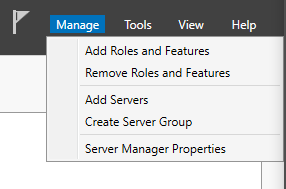
In Server Manager, I opened Manage > Add Roles and Features.
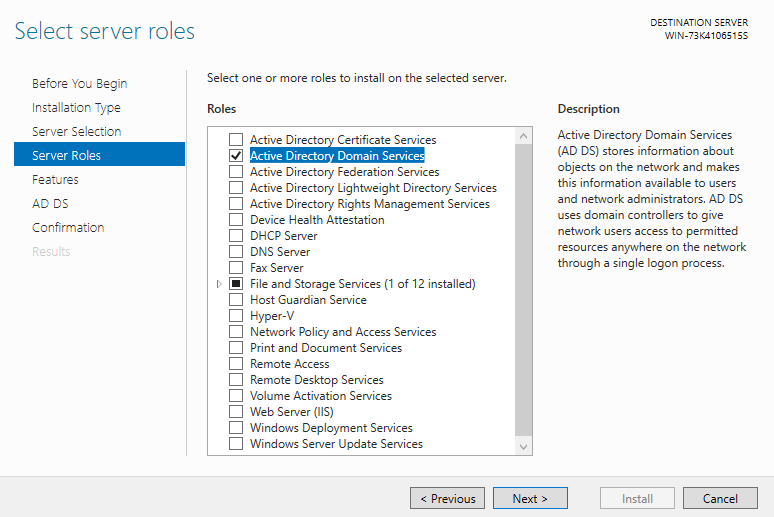
I kept the wizard on Role-based or feature-based installation, selected the local server from the server pool, and chose Active Directory Domain Services from the server roles list. I left the remaining options at their defaults for this introductory lab and installed the role.
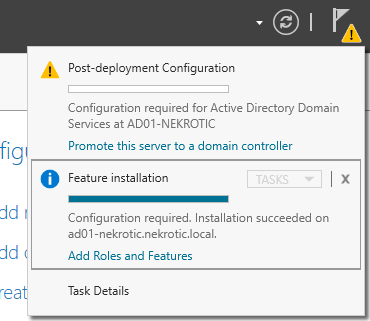
Installing the role only placed the AD DS components on the server. The server still had to be promoted before it became a domain controller.
After installation, Server Manager showed a notification flag with the option to promote the server.
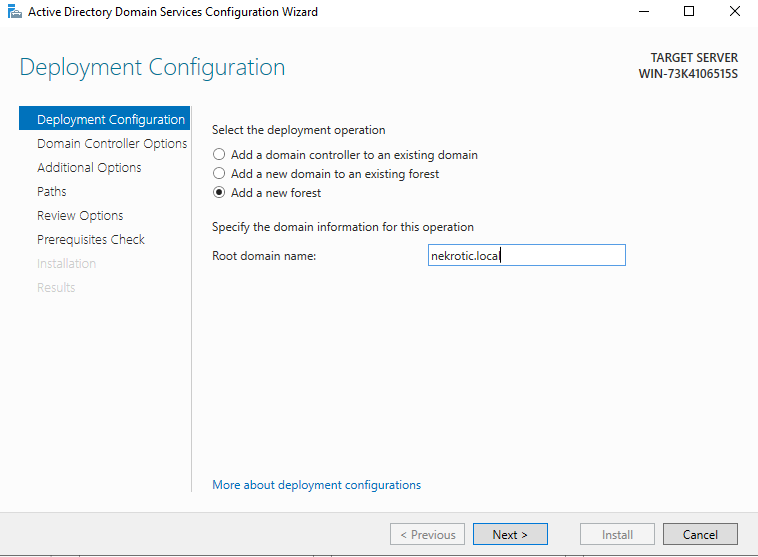
For the deployment configuration, I chose Add a new forest and used the root domain name nekrotic.local.
The wizard also required a Directory Services Restore Mode password. DSRM is used for recovery scenarios where the domain controller needs to be restored or repaired. After completing the prerequisites, the server restarted and came back with Active Directory Domain Services and DNS installed.
DNS and domain discovery
Once the server was promoted, DNS became part of the domain setup. The server’s DNS settings pointed back at itself through loopback, and the domain needed usable records so clients could resolve the domain controller and related hosts.
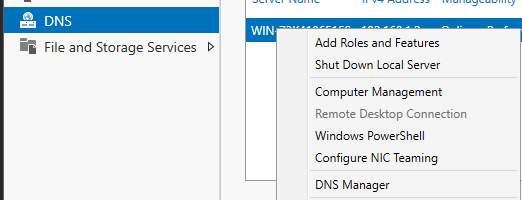
From Server Manager, I opened the DNS view, right-clicked the AD server, and selected DNS Manager.
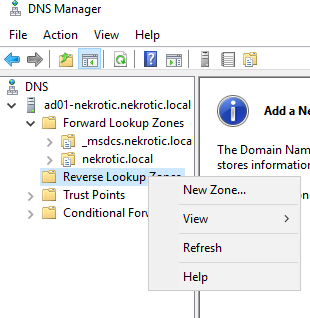
The first manual DNS task was a reverse lookup zone. Forward lookup resolves names to IP addresses. Reverse lookup resolves IP addresses back to names. For the host-only network, I created a reverse lookup zone for the first three octets of the lab network: 192.168.1.
After that, I created or checked host records for the firewall and domain controller.
For the firewall:
- Name:
fw01-Nekrotic - IP address:
192.168.1.1 - Associated pointer record: enabled
For the Windows Server:
- Name:
ad01-nekrotic - IP address:
192.168.1.2 - Associated pointer record: enabled
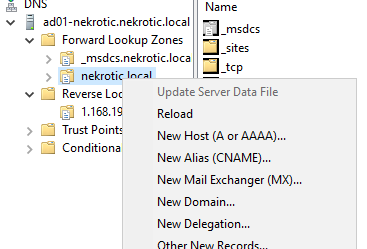
In this lab, DNS was part of the domain infrastructure rather than a general internet lookup service. The workstation needed to ask the domain DNS server about nekrotic.local; an external resolver would not know anything about that private lab domain.
Creating the domain
The domain itself was created during the promotion step when I selected a new forest and set the root domain to nekrotic.local. That gave the lab a domain namespace and created the default Active Directory structure.
The domain controller then held the directory database, DNS records, and domain services that the workstation would later use. In this lab, ad01-nekrotic was both the domain controller and DNS server. That is common in small labs, but it places a lot of authority on one host: if the domain controller is misconfigured or compromised, the whole domain is affected.
Users, groups, and policy
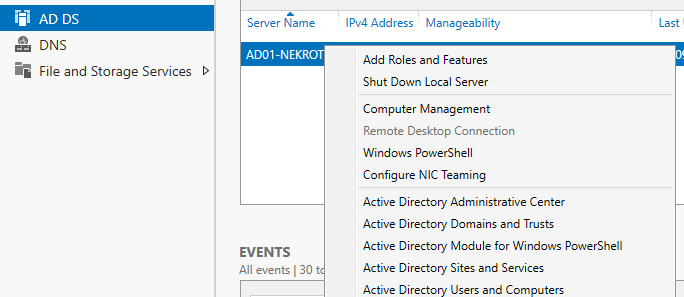
With AD DS and DNS working, I moved into Active Directory Users and Computers from Server Manager.
The lab used two types of users:
- a standard domain user account;
- a domain administrator account for administrative tasks.
The standard user was created under the domain’s Users container with the normal New > User workflow. The domain administrator account followed the same creation process, but after creating it I opened the account properties and used the Member Of tab to add it to Domain Admins.
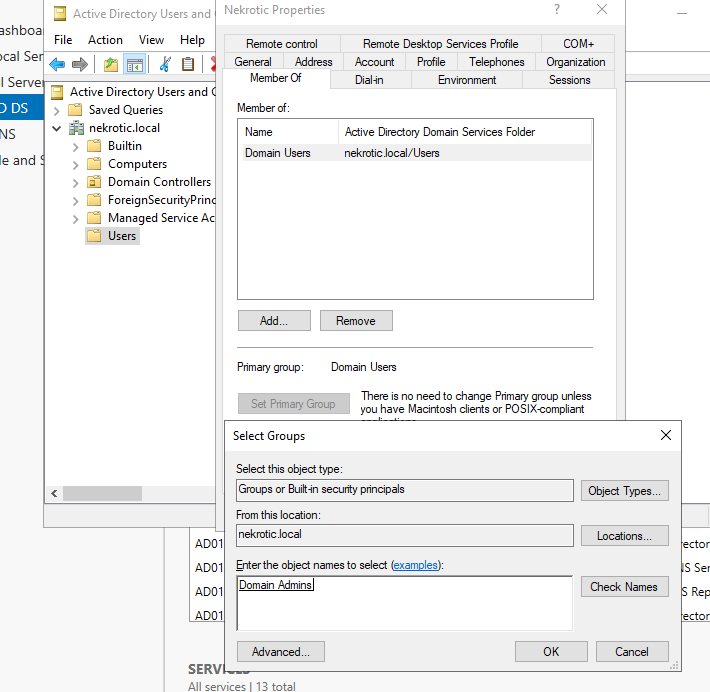
The account received administrative rights through its Domain Admins group membership, not through the username itself. In real AD administration, nested groups and inherited privileges can make access harder to reason about.
I did not go deeply into Group Policy in this lab, but the same principle applies: centralised policy and group membership are what make Active Directory scale. They also create risk when default settings, old memberships, or broad privileges are not reviewed.
Joining a workstation to the domain
Before joining the Windows 10 workstation to the domain, I changed its IPv4 settings so DNS pointed at the domain controller.
The workstation kept its lab IP of 192.168.1.3 and default gateway of 192.168.1.1, but the preferred DNS server was set to 192.168.1.2.
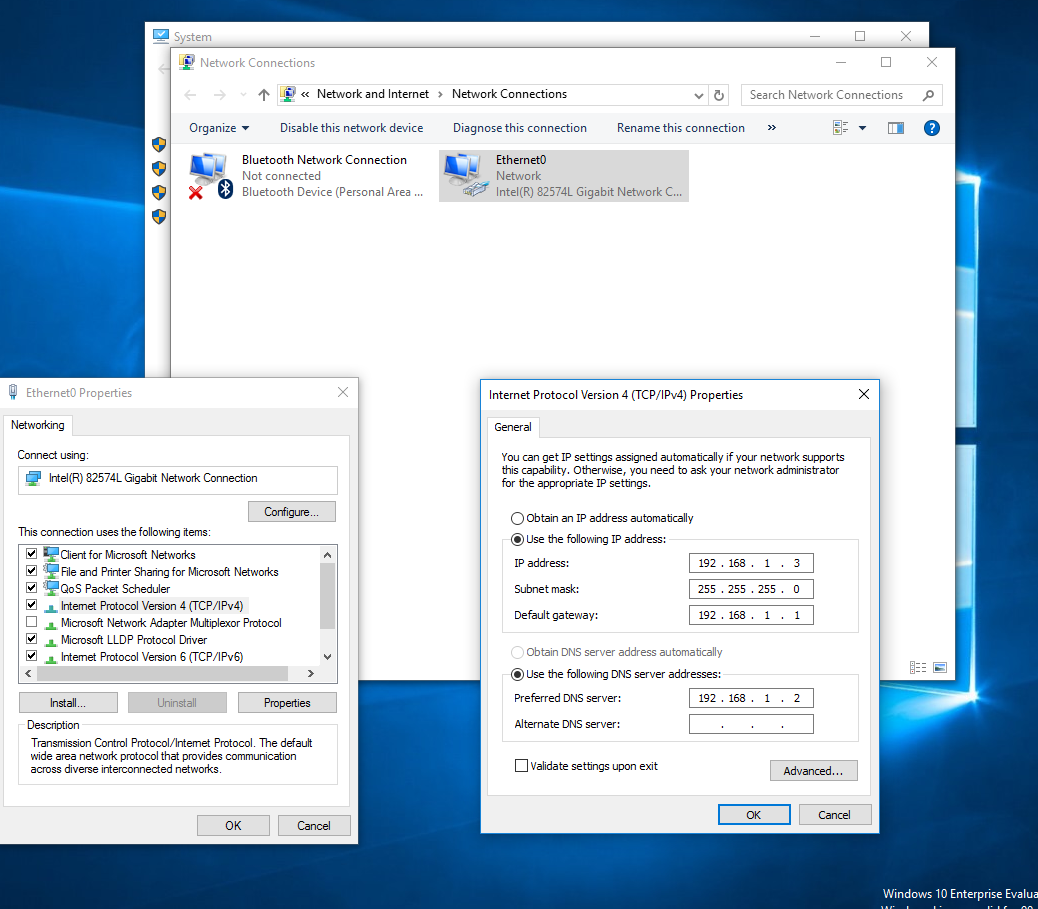
The workstation needed to resolve nekrotic.local through the domain controller, so I set its preferred DNS server to 192.168.1.2. Asking an external DNS provider for the lab domain would fail. Asking the domain controller allowed Windows to locate the right domain services.
To join the domain, I opened This PC > Properties > Change settings, then used the computer name/domain settings to rename the workstation and select Domain instead of Workgroup. The workstation name was set to wks01-nekrotic, and the domain was set to nekrotic.local.
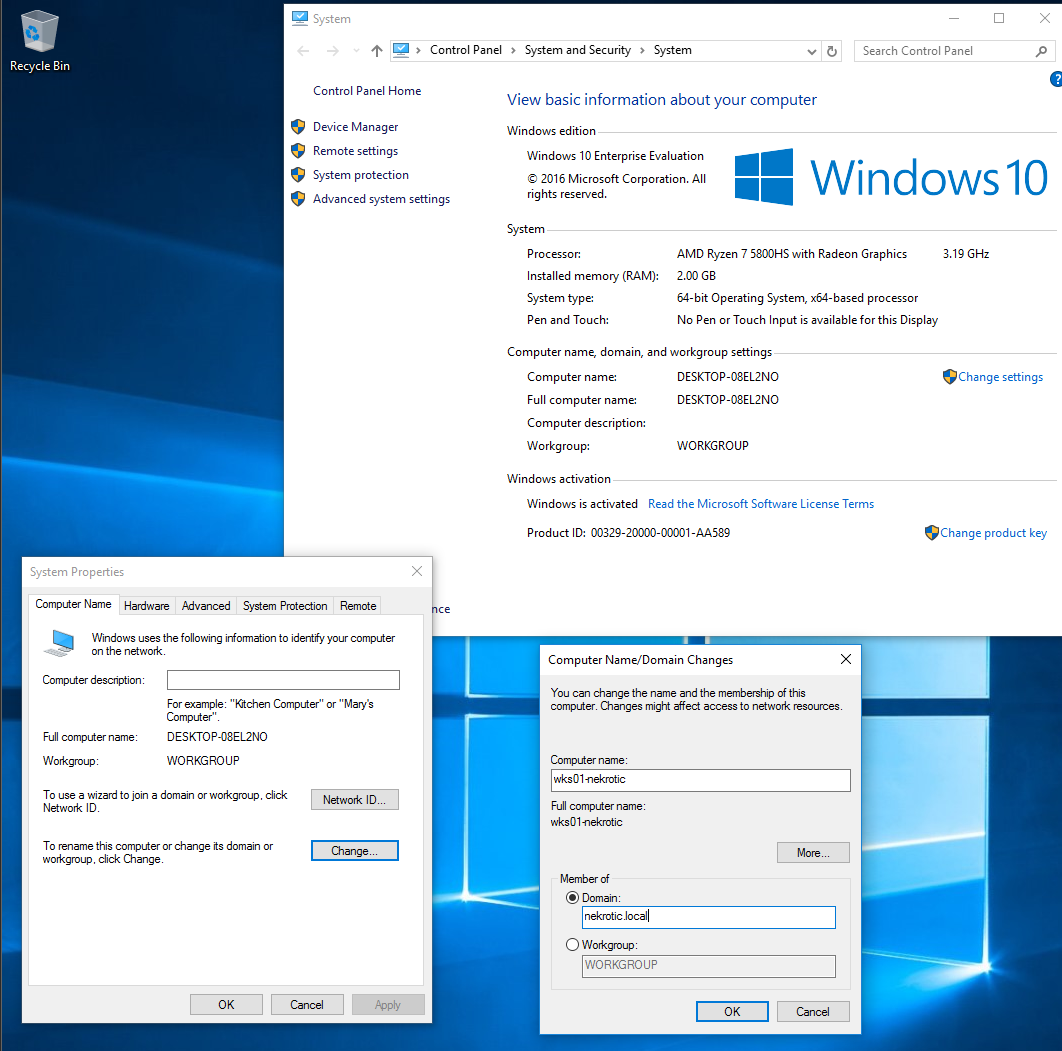
Windows then prompted for credentials with permission to join the domain. After authentication, the workstation joined the domain and needed a restart before domain logon was fully available.
For a domain user, the logon format used in the lab was jsmith@nekrotic.local. The workstation was no longer only checking local accounts; it was authenticating against the domain.
Security risks and misconfigurations
I used the completed lab to examine what could go wrong in a small Active Directory environment. The focus here is risk analysis: understanding the exposures, misconfigurations, and administrative choices that make a domain easier or harder to defend.
I observed several risk areas:
- Domain controllers expose core services such as DNS, Kerberos, LDAP, SMB, RPC, and sometimes WinRM.
- A domain controller can be identified quickly from its open services, DNS records, and role in the network.
- Weak passwords and poor password policy can turn ordinary domain users into a path towards wider access.
- Over-privileged accounts, especially Domain Admin accounts, create high-impact failure points.
- Kerberos-backed environments can expose useful signals about users and services if policy and account hygiene are weak.
- Remote administration services such as WinRM and RDP need tight control, monitoring, and firewalling.
- LLMNR and NetBIOS Name Service can create name-resolution risk where clients trust local network responses too readily.
- SMB signing, name-resolution hardening, and sensible proxy/WPAD handling can reduce common Windows network attack paths.
In the lab, I observed common domain-controller ports including DNS on 53, Kerberos on 88, RPC and NetBIOS-related services, LDAP on 389, SMB on 445, Kerberos password change on 464, RPC over HTTP on 593, LDAPS on 636, Global Catalog services on 3268 and 3269, and WinRM on 5985. The combination of those services identified the role of the host as a domain controller.
Administratively, the result was straightforward: a domain controller is not just another Windows server. It anchors identity, DNS, authentication, and policy for the environment. If it is exposed too broadly, administered casually, or protected with weak account policy, small mistakes can become domain-wide problems.
Defensive takeaways
The practical hardening notes I took from the lab were straightforward:
- use strong password policies and avoid predictable lab-style credentials;
- minimise Domain Admin use and keep privileged accounts away from normal browsing or day-to-day workstation activity;
- review group membership regularly, especially privileged groups;
- monitor domain-controller services and remote administration access;
- restrict WinRM and RDP to appropriate management hosts and users;
- enable SMB signing where appropriate;
- disable or harden LLMNR and NBNS where they are not required;
- use DNS deliberately instead of relying on insecure fallback name resolution;
- create clear proxy/WPAD handling where that is part of the environment;
- treat domain-controller logs as high-value security telemetry.
The defensive points came directly from the configuration. DNS records, group membership, workstation DNS settings, domain join permissions, and remote-management exposure are visible in the environment rather than abstract checklist items.
Currentness note
This is a historical lab note based on a 2021 VMware Active Directory build. Windows Server versions, Microsoft evaluation links, default behaviours, hardening guidance, and administrative tooling change over time.
I would still use the lab structure as a learning exercise, but I would check current Microsoft guidance before treating any of the configuration choices as modern best practice. The model still holds: Active Directory centralises identity and administration, so DNS, authentication, privileged groups, domain-controller exposure, and monitoring need deliberate attention.